
Each IDX Broker page needs a specific template to display correctly with MyHome. This guide walks you through activating the recommended template for every page.
1. Log in to your IDX Broker Account - idxbroker.com
2. Visit middleware.idxbroker.com/mgmt/pages
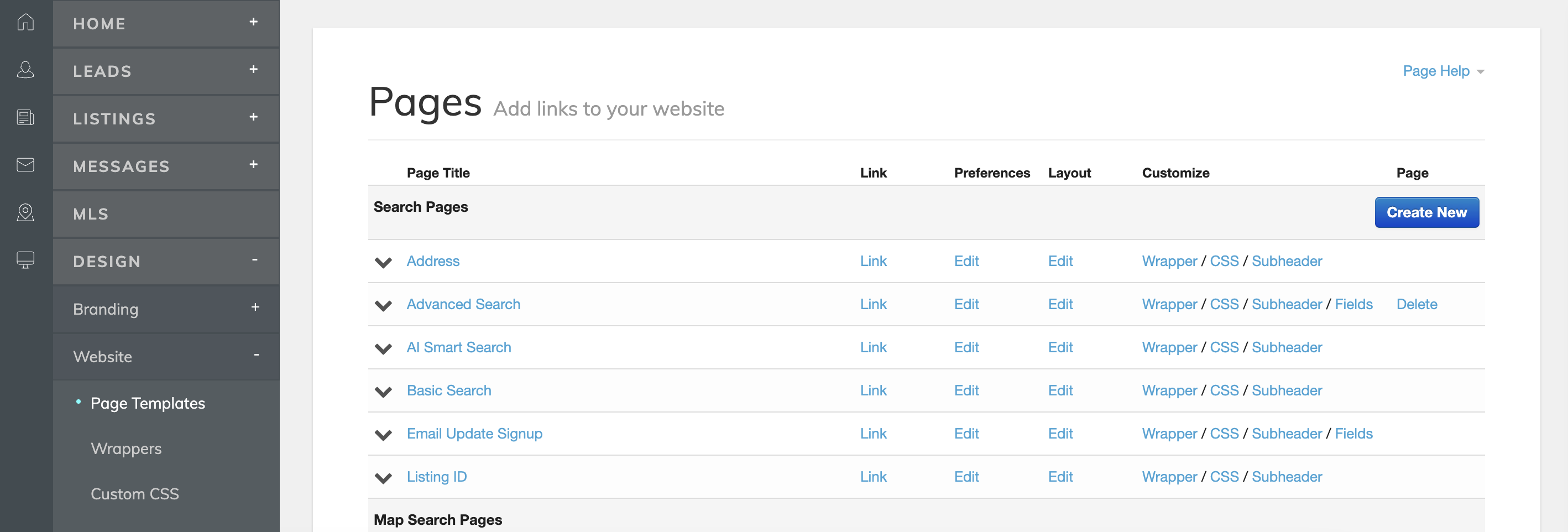
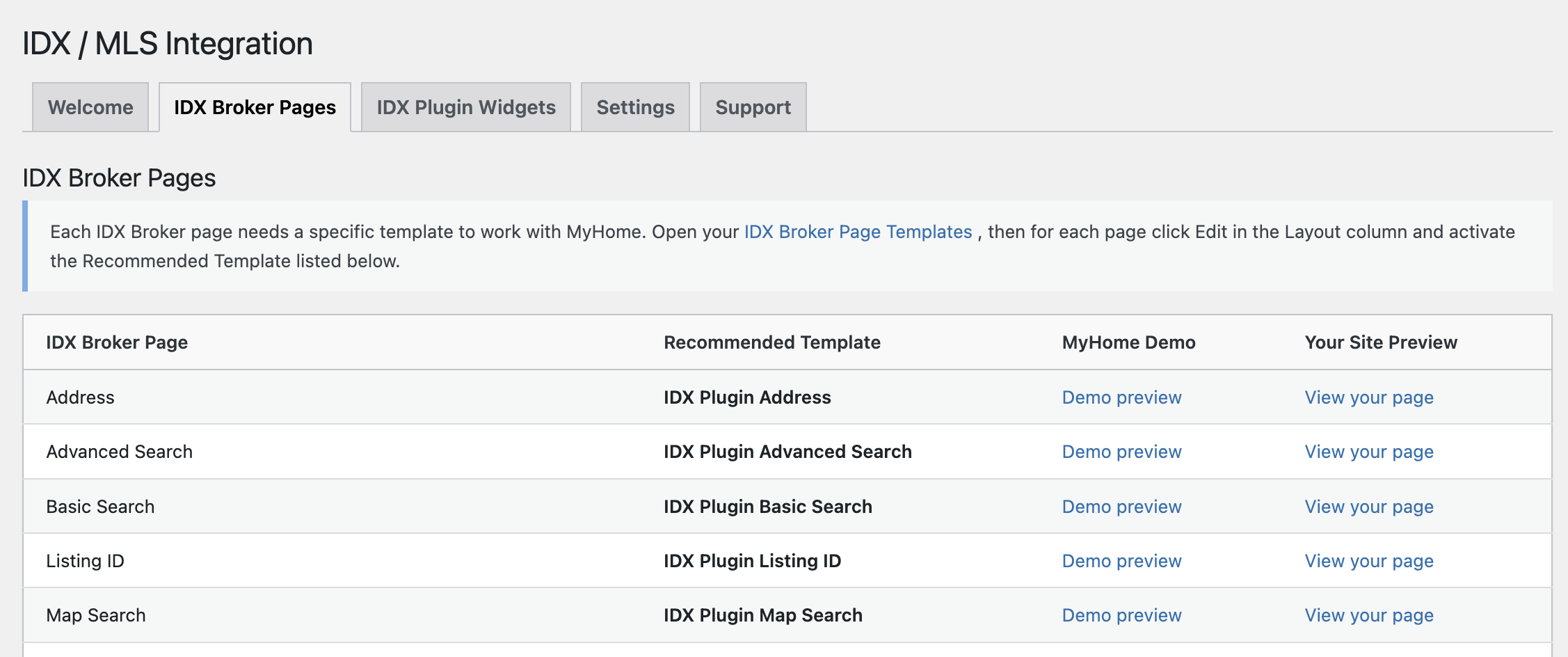
3. You will see a table like the one below.
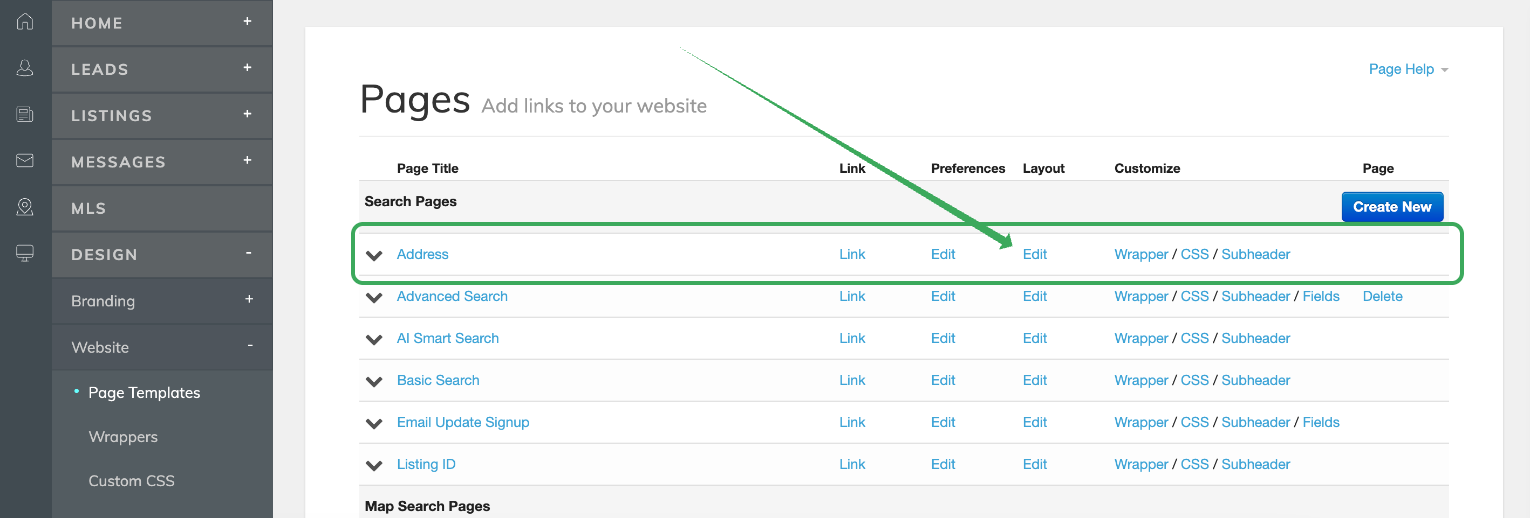
4. Edit the "Address" layout by clicking "Edit" in the "Layout" column (not in "Preferences").
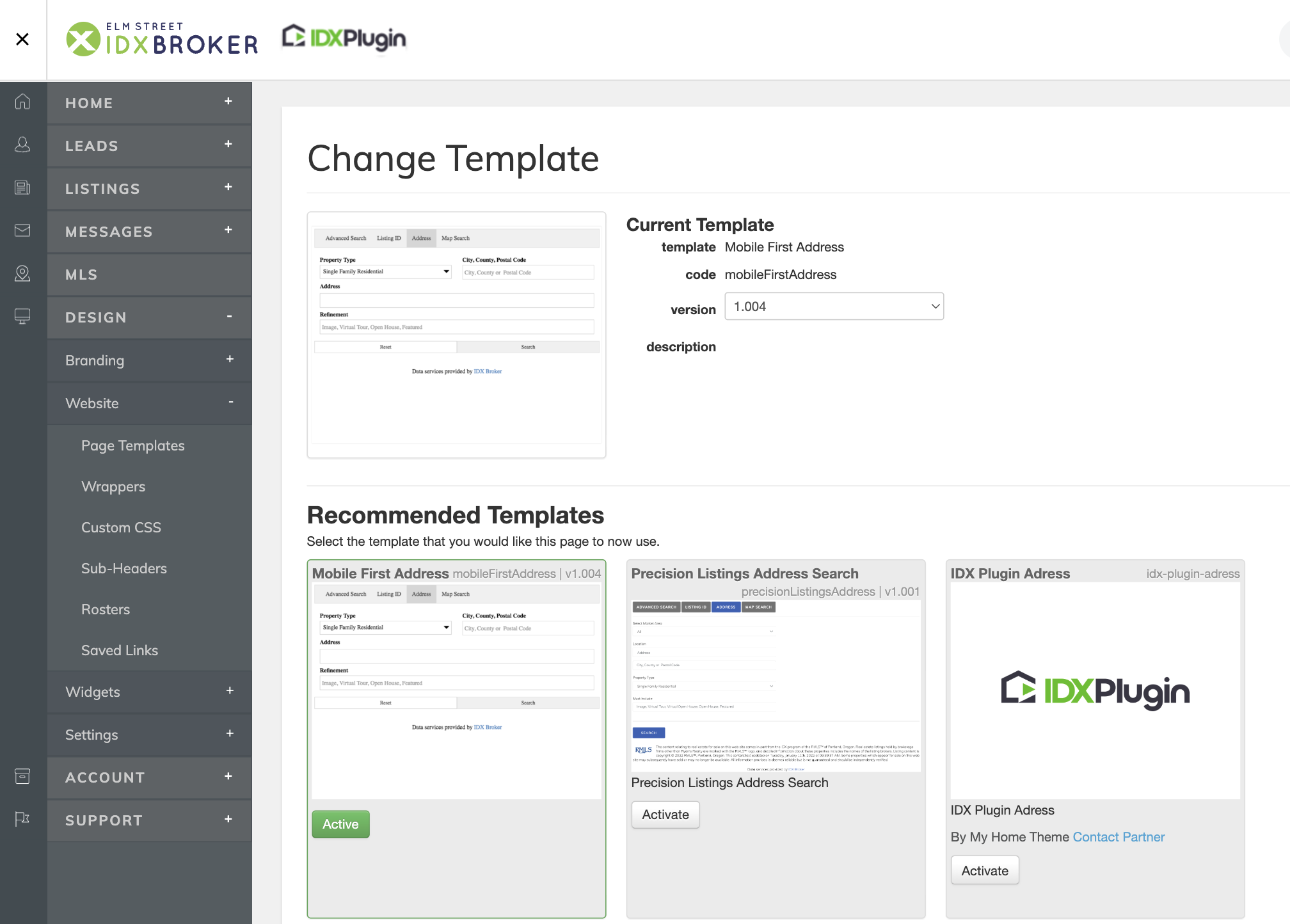
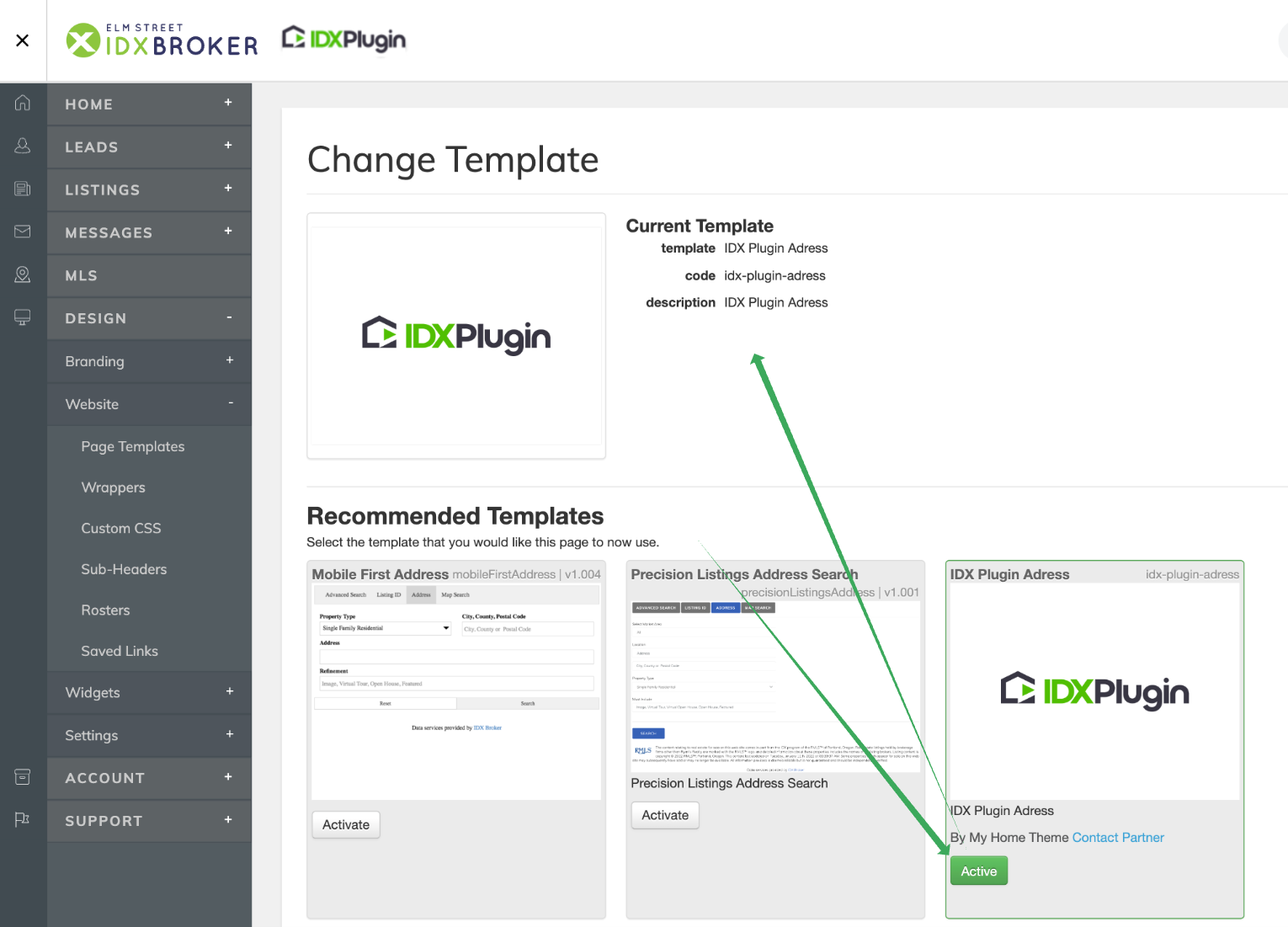
5. You will see different templates.
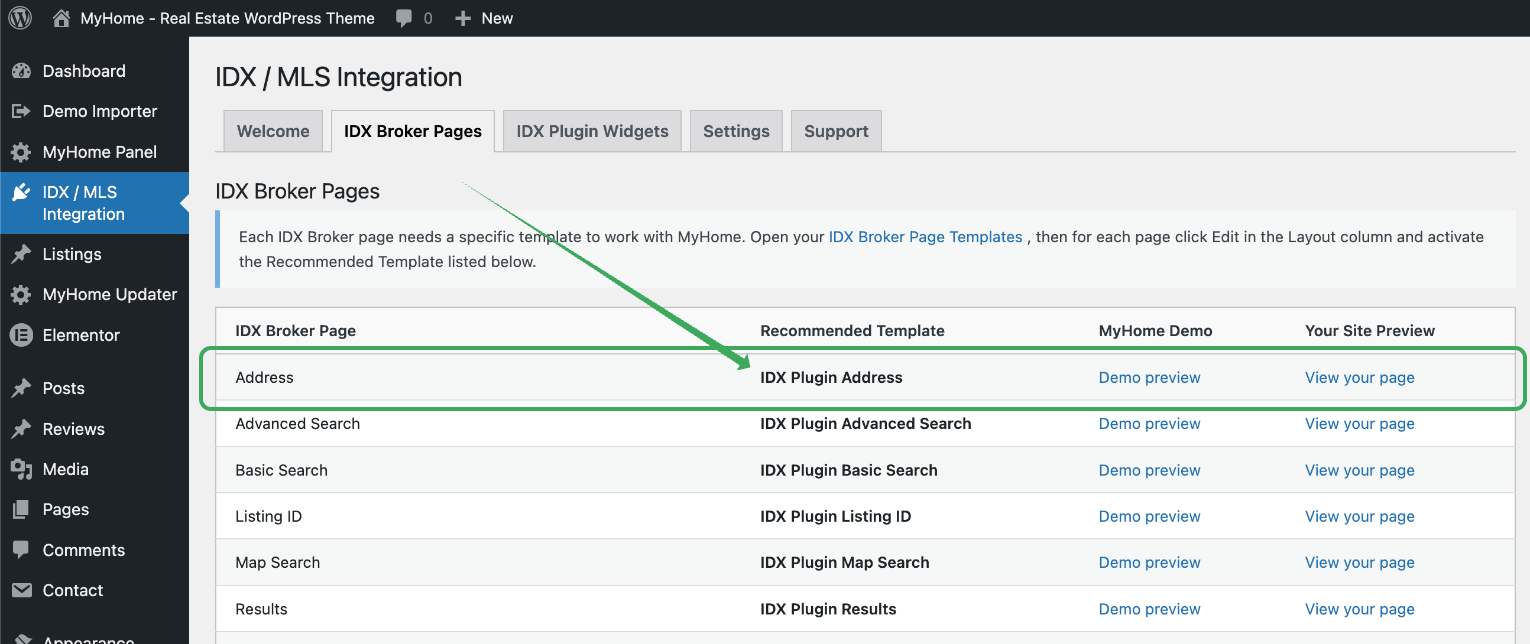
5. Check the recommended template in MyHome. Here it is "IDX Plugin Address".
6. Click the "Activate" button on the recommended template card. Once activated, the button will change to "Active" and the card will be highlighted in green, showing as your "Current Template"
8. Manually repeat the process for the other pages. Go back to middleware.idxbroker.com/mgmt/pages and edit the layout of Basic Search, set the recommended template, then move to the next page, and so on.
9. When you finish, you can verify everything is set correctly by comparing our demo design with your site. It should look the same, with your brand colors and typography set in MyHome.
If you have any problems or questions related to IDX integration, please feel free to write to support@tangiblewp.com and we will be happy to help.